
How to Turn On Unknown Sources on Amazon Firestick (Step-by-Step Guide)
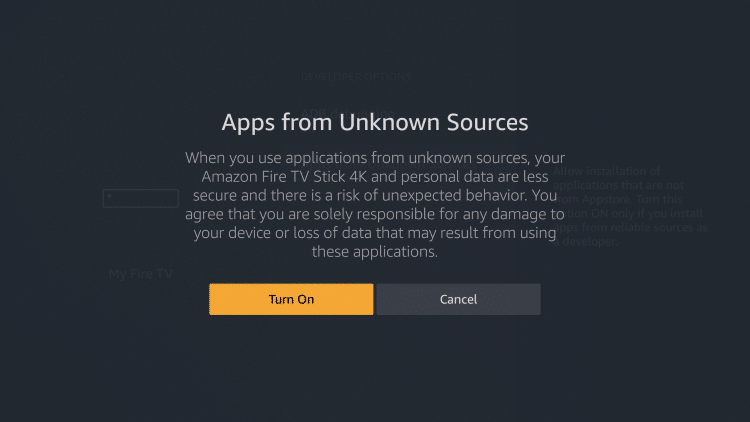
If you want to install third-party applications on your Amazon Firestick, you need to enable Unknown Sources (also called Install Unknown Apps on newer Firestick versions).
This guide is written for beginners and works on all Amazon Firestick models, including the latest Fire OS.
Why Enable Unknown Sources on Firestick?
By default, Amazon Firestick only allows apps from the Amazon App Store.
To install third-party apps, you must turn on Unknown Sources.
This is commonly needed for:
- Entertainment applications
- Utility tools
- Custom or third-party apps
Step-by-Step: How to Turn On Unknown Sources on Amazon Firestick
Step 1: Open Firestick Settings
- Turn on your Amazon Firestick
- From the Home Screen, go to the top menu
- Click the ⚙️ Settings icon
Step 2: Open My Fire TV
- In Settings, scroll right
- Select My Fire TV
(On older Firestick versions, this may appear as Device)
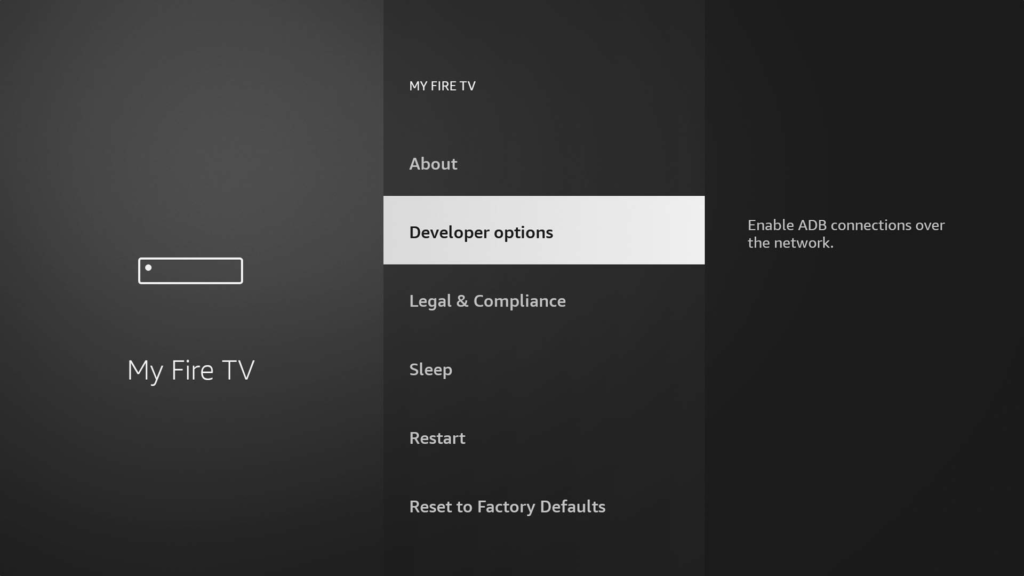
Step 3: Enable Developer Options
- Click Developer Options
If Developer Options is not visible:
- Open About
- Select Fire TV Stick
- Press the OK button on your remote 7 times
- Go back — Developer Options will now appear
Step 4: Install Unknown Apps (New Firestick Method)
- Inside Developer Options, click Install Unknown Apps
- Select Downloader
- Turn it ON
📺 New Firestick Message You May See:
“Turn on Unknown Sources to install this application”
Simply select TURN ON or ALLOW.
Step 5: Allow Permissions
- When prompted, click Allow
- Continue installing your application
Older Firestick Versions
On older Fire OS versions, you may see:
- Apps from Unknown Sources
Just turn this option ON and confirm.
Is It Safe to Enable Unknown Sources?
Yes — if you only install apps from trusted sources.
Safety Tips:
- Avoid unknown or suspicious apps
- Do not give unnecessary permissions
- You can turn Unknown Sources OFF after installation
Common Problems & Fixes
Developer Options Missing
✔ Fix: Use the 7-click method in the About section
App Installation Blocked
✔ Fix: Make sure Downloader is enabled under Install Unknown Apps
Frequently Asked Questions (FAQ)
What does Unknown Sources mean on Firestick?
It allows installation of apps not available on the Amazon App Store.
Do I need to keep it enabled?
No. You can turn it OFF after installing your app.
Does this work on new Firestick models?
Yes. This guide is updated for new and old Firestick versions.
Final Words
Turning on Unknown Sources on Amazon Firestick is a simple process once you know the steps. This setting allows you to install helpful third-party applications and enjoy more flexibility on your device.
If you need help with setup, feel free to contact support.